Showing posts with label google. Show all posts

Sunday, October 04, 2009

Collaborative Maps

Ever sit around playing with a particular web tool and say, "This is great, but there's got to be a way to...(insert your idea here)." This particular question has been rolling around in my head regarding Google Maps. I LOVE Google Maps, but have been frustrated that I haven't found an easy way to create maps collaboratively. I know I can share Google Docs and have multiple people working on the same document, presentation, or spreadsheet, so why can't I do the same with maps? I was ready to write a blog post today pleading with Google to add a SHARE button to Google Maps when I was reminded of a tool that Andy Losik shared with me last spring.

There IS a way for my students contribute placemarks to a Google Map. A way that doesn't require them to use my login, or even have a Google account. Here's what you do:

  1. Create a Google Form - Students will use this form to enter their placemark information. This will put their information into a Google Spreadsheet. No login required. They just need a link to the form.
  2. Use Map A List (www.mapalist.com) to auto-generate a Google Map that's linked to your spreadsheet.

Details
To set up your Google Form, you need to know that Map A List determines location using the following fields:
  • Address 1
  • Address 2
  • City
  • State
  • Zip
  • Country
  • Latitude*
  • Longitude*
*Latitude & Longitude information supersedes address information.

You'll then want to add three additional fields for the placemark information.
  • Title - What appears for the title of the placemark.
  • Additional Info - What appears as the text in the popup window. This field will also accept HTML code. So any code you can copy & paste into Google Maps will work here too.
  • Placemark Symbol Identifier (optional) - This could be a multiple choice item in that your students use to select what type of placemark they want.
Here's a sample Google Form I created. Feel free to add your data to it.

Once your form is done and you've started collecting information, go to Map A List and sign-up for an account. After that, you'll need to give Map A List authorization to access your Google Spreadsheet. Once that is done you can start creating your map. It's a simple step by step process.

Select the spreadsheet that contains your map data.


Match the fields in your spreadsheet to the ones that Map A List uses to create your placemarks.


Once that is done, Map A List will check to see how many locations it can find based on the information in your spreadsheet. It does a surprisingly good job of determining locations even with incomplete information.

If you added a field that determines what type of placemark to use, the advanced feature on the next step is where you enter that information.


The last step is where you save your map and set a few final options. If you want to be able to send a link to your map to others or embed it on your web page or blog, you'll need to make it public.

Here's a link to the Google Map I created with my form. If you added data to the form, it may take a while to appear on the map. I set mine to update automatically, but noticed that sometimes I need to go in to Map A List and tell it to update the map manually if I want to see new data added the spreadsheet.

Classroom Applications
Students can participate in this type of collaborative map by...
  • Mapping Birthplaces. It could be their own, or someone else's. Our 5th grade is working on immigrant reports right now. This would be a fun way to share their information.
  • Historical Places. Students could work together on a class project locating and posting information about historical places around their state or country.
  • What's The Weather Today? Classes from several different schools could pick a day and share the weather. They could even embed a picture of what it looks like outside.
  • Breakfast Around the World. The form could be shared with as many people as possible to find out what people around the world eat for breakfast. Hmmmm. This idea sounds familiar.
  • I'm sure you can think of other ideas...
This is great, but there's got to be a way to...
Add lines? Highlight regions? Draw shapes? I haven't figured these out yet. If you have any ideas please share them.

By the way Google, this does not let you off the hook. I'd still like to see a SHARE button on Google Maps.

Tuesday, September 08, 2009

Summer Reflections


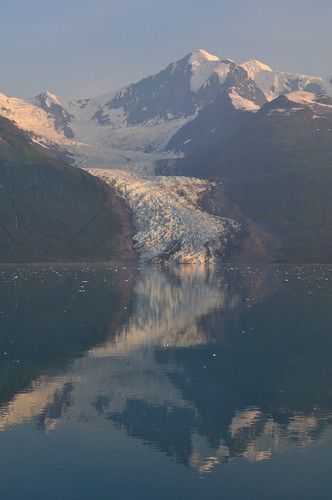
Many of you start a new school year today. In just a moment students will be arriving, anxiously waiting for the pearls of wisdom you choose to bestow upon them. Like me, many of you are probably wondering how summer went by so fast. It seems so close, yet as you frantically put those finishing touches on your classroom, it also seems infinitely far away. It wasn't that long ago, I think it was July, that I was in Alaska exploring Denali National Park and cruising the Inside Passage. When I get stressed about everything on my "to-do" list it helps to go back and re-live that adventure. It puts me back in my "happy place".

Because I consider myself a bit of a techie, I used the trip as an opportunity to dig in and really get familiar with Google Maps. Below is my Alaska Adventure.


View Alaska Adventure in a larger map

Creating a Google Map is a wonderful way to combine stories, pictures, and video from your vacation. I was able to arrange events in order, map my travel route, and place pictures and videos in their proper place on the map. It's like an interactive travelogue. And sharing my travel story is as simple as copying and pasting a link into an e-mail (or blogpost).

When editing a "story" events can be rearranged by simply dragging them up and down the list on the right side of your screen. Lines can be added to show travel routes. One feature I really liked was Google Maps ability to make lines follow known roads or highways. (I don't even think you can do this in Google Earth.)


I had no problem adding photos I had posted to my Flickr account. In the "rich text" editor you just click on image button and paste the URL.


Google Maps will also accept some embed code. Using the "Edit HTML" feature, I was able to copy and paste code to embed video clips I posted to YouTube. Since Google owns YouTube it makes sense that this would work. I did not have any luck trying to embed something from Voicethread however. It may take some experimenting to see what it will and will not accept.


As you can imagine there are lots of possibilities for using Google Maps in the classroom. Maps are a great way for students to grasp large amounts of data in a way that isn't overwhelming. Here's one that shows recent earthquakes around the world (earthquakes.tafoni.net). Do you think your students could use this information to locate the boundaries of tectonic plates? If your class is looking at current events, the LA Times has one with updated info about the Station Fire.

You can also get students involved in creating Google Maps. In an earlier post I showed a "Breakfast Around the World" map created with data collected from our 3rd graders. Colette Cassinelli created a project she uses with her students called "Postcard Geography". I can see our 5th grade teachers doing something similar for combining information from students' state reports. (Colette also has some great Google Map links on her wiki.)

One hurdle you need jump when using maps with students is that Google Maps is not part of Google Apps for Education. So in order for students to edit a map or create their own, they need to register with Google and create their own Google account, or use one created by their teacher. Otherwise the teacher will have to take work submitted by students and post it to Google themselves. (That's what I've done.) Hopefully this is something Google will add to Apps for Ed in the future.

Enjoy playing with Google Maps and if the new school year gets a little overwhelming, take a time out, think back to summer and map your summer memories. I think I 'm going back and look at some Alaska pictures right now.

Thursday, April 02, 2009

It's All About the Network

Have you seen those Verizon commercials that have hundreds of support people standing behind their wireless phone user? The idea is to let you know that you're not alone, that you've got people behind you to keep you connected. Their slogan - It's all about the network. That's how I felt about MY network this week.

On Tuesday morning I worked with one of our third grade classes. They had just read the book "George Washington's Breakfast" by Jean Fritz. Our idea was to create a little form, asking the world what they ate for breakfast. I opened up a new form in Google Docs and had the kids help write the survey description and questions. Then I posted a link to the form on Twitter and Plurk asking you to show them the power of our network.

The results were practically instantaneous. Within 15 minutes we had a dozen responses. By that evening there were over a hundred. When I checked the next morning there were almost 400! Most were from the US, but we also had responses from Australia, New Zealand, Japan, Scotland, Italy, China, Singapore, Korea, and Brazil!

I thought it would be fun to add the responses to a Google Map, so I started copying and pasting what people ate into placemarks. I had to stop after the first 200. I just couldn't keep up with the responses.


View Larger Map

We're still working on what we're going to do with all the data, but if you'd like to share our project with your students, here is a link to our spreadsheet. (As I write this, we're up to 469 responses.)

I'd like to thank all those who contributed to the survey and passed it on to others. The kids had a blast watching the results come in. We were all amazed by the huge response. Our network ROCKS!

Saturday, April 12, 2008

Adventures in Google Apps

Over the past several weeks we've been exploring Google Apps for Education here at St. John's. I really like the way Google Docs allows for collaborating on projects, but the biggest hurdle that prevented us from using it in our middle school was a registration process that requires users to sign-up with an e-mail address. We can't require our students to have internet e-mail accounts. This is why we decided to try Google Apps for Education.

The process began with signing up our school, registering our domain, and setting up our site. Our reward came this week we when we actually started using it with 6th Grade.


Signing Up/Registering Our Domain
Signing up for Google Apps for Education begins at their site. This is where the process got a little confusing for me. Thankfully our school network administrator was there to help me through the process. The first thing they ask for is your domain name. We had a couple of domain names registered to our school that we were not using so we chose one of those.
Next we had to prove to Google that we actually owned our domain. This involved either uploading a unique HTML file they supplied to our site, or by changing something called the CNAME to redirect our site to Google. Since the name we selected to use was registered to us but not an active web site, we could not upload anything to it, so we had to change the CNAME. If this part sounds confusing to you, rest assured it was confusing to me too. Thankfully our network guy knew what to do. He had to go to the site where we registered our domain and make these changes.

It took almost a week for Google to verify that we had ownership of the domain, but once it was done we could go to our site and a custom Google start page (think - iGoogle) would appear. The page included links to Google Docs, GMail, GoogleTalk, Google Calendar, and any other modules I chose to add.

NOTE: Going to www.yourdomain.com would take you to your custom start page. You can go straight to Google Docs by typing docs.yourdomain.com.


Set-Up & Adding Users
The default settings in Google Apps for Education automatically creates GMail accounts for each of your users (Think: username@yourdomain.com). Since we did not want our students to have GMail accounts, we chose to disable the GMail feature, along with GoogleTalk (Chat is blocked by our firewall anyway) and Calendar (our school site already has a calendar). This basically left Google Docs.

To get our students into the system I was able to export their usernames from our learning system into an Excel CSV file, tweak the spreadsheet a little so it looks like the one below, and upload them to our Google site. For student passwords I just assigned them a generic password and checked a box that requires them to change it the first time they login.


Our First Project
Our 6th grade history teacher wanted his students to collaborate on their class notes for his lesson on the Age of Pericles. He created a Google Presentation with a single question on each slide. We decided it would be easier for a first project to have students each working on their own slide as opposed to editing over each other on the same text document. That presentation was copied multiple times - one for each group of 4 or 5 students. Students were were then invited to collaborate on their copy of the presentation.

For the introductory lesson we just showed students how to login and access the presentation. Even though their usernames had already been imported to our Google system, for their first login they still had to do two levels of "type the squiggly word" and click on the "agree to terms" button to verify their account. We showed them the Common Craft Google Docs video to give the kids an idea how Google Docs work. Then we showed them how to open & edit their copy of the presentation. Student groups had to decide who was going to work on which slide. Their assignment was to go home and work on their questions so their answers could be shared in class the next day.

What was the first thing they all started doing? Changing the themes and watching the screen change on each of the PC's in their group. I've to to admit, that is kind of empowering - and fun. The next day, out of three class periods, all but 2 or 3 students had completed their assignment.

NOTE: The ones that didn't finish had copied the web site incorrectly in their assignment book.

Wednesday, April 11, 2007

Potpourri

For those of you looking for a coherent, single topic, instructional blog entry you might as well click the little red “x” and close this window right now. What you’ll be getting today is a hodgepodge of random thoughts and ideas. A Web 2.0 stream of consciousness as it were…


Sounds Good to Me

I’ve devoted several posts to some great video podcasts for use in the classroom, but let’s not forget that there are some pretty good audio podcasts out there too. Getting kids (and teachers) familiar with downloading and subscribing to audio podcasts helps them get an idea of what a podcast is. It also gets them one step closer to producing their own podcasts. Here are a few “baby steps” to get you started:

Grammar Girl’s Quick and Dirty Tips for Better Writing – a weekly program that focuses on writing and good grammar. These 3 – 6 minute podcasts would be good for grades 5 on up. NOTE: You might have to listen to a little ad from their sponsor before they get to the topic.

Radio WillowWeb
– Wow! These kids have really taken student made podcasts to the next level. Great educational content from multiple subject areas, written and presented by elementary students. This would be a great model to follow when introducing your kids to making their own podcasts.

Reading Rockets Presents: Meet the Author – Okay all you librarians, pay attention. This has interviews with various authors including Jack Preletusky, Avi, Marc Brown, Patricia Polacco, Katherine Paterson and many others. A great resource!

Wondering if your kids will be able to listen to these? Try this. Ask how many of your students have iPods. I'm guessing the number will be between 90-100%. Even if they don't have iPods they can still listen to podcasts on their computer. Then imagine giving your kids this assignment, "I want you all to go home and listen to your iPod..." You could be the coolest teacher at your school!


Google Earth Tours

Recently a friend and fellow teacher, Janet English*, had a chance to visit South Africa. One of the many things she did there is visit and take a mini safari in Pilanesburg National Park. What’s cool is she created a virtual tour of the park using Google Earth. The tour lets you follow along on her adventure with written descriptions and pictures. I clicked through this tour with my 5 year old niece over Easter Break and had her try to see how many animals she could name. She got almost all of them.

Wouldn’t something like this be a great way to create digital stories of some of the interesting places you've visited and share them with your class? I’ve definitely got to learn how to do this! When I do, I’ll be sure to post directions for you. I’ll also see if I can get permission to post Janet's virtual tour file in a future blog.

*Janet is currently Senior Director of Education and New Media at KOCE-TV (Orange County's PBS Station)

Speaking of Blogs

As long as I’m talking about South Africa, I encourage everyone to check out Janet’s South African World Summit Blog. It contains some great photos, podcasts, and interviews with children from South Africa and around the world. This is a great way to let your students hear voices and thoughts from kids their own age and see how they are alike and different.

For students studying the American Civil Rights movement, this blog also provides some insight into the current struggle for equality in South Africa. Read and listen to what is going on right now and compare it to our own history. Ask your students if they see any similarities or differences. What have we learned from our experience here in the US that might help them deal with their present situation? (What do you think? An interesting class project?)

Planet Earth

Have you been watching Planet Earth on the Discovery Channel? Not only does this amazing program make me want to spend $2000 for a High Definition TV, it's also got some great educational resources as well. Check out the Discovery Channel Planet Earth site for

Monday, February 05, 2007

A New Way to Process Words

If you haven't figured it out by now, I love stuff that's FREE. Imagine my joy when I discovered Google Docs. It's a free basic word processor. There's no software to install - it runs right inside your web browser. You can import a variety of word processing documents from Word (.doc), Star Office, Open Office (.odt), and Rich Text files (.rtf). While you can't import pictures or add clip art, you do have the advantage of being able to access, edit, and print from any computer with Internet access. Just log in with your Google username and password. (I was able to use the same one I use for Blogger.)
But wait there's more!

What makes Google Docs so powerful is the fact that you can Add Collaborators to your documents. By "inviting" others to edit your documents, you can have several people working together on the same document at the same time. You see changes as they happen. What a powerful tool for learning! When a document is finished it can be posted directly from Google Docs to your blog. If you make a document "public" users can subscribe to an RSS feed so they can be updated when any changes are made.

While a great tool like this doesn't convince me to put good old Microsoft Word in mothballs just yet, it sure does make me look at word processing in a whole new way. Google Docs is a great Web 2.0 tool.

Oh, wait! Did I forget to mention you can also do spreadsheets too? It imports Excel (.xls), Open Office (.ods), and Comma Separated (.csv) files.


For more info about Google Docs, take the tour.
