Have you seen those Verizon commercials that have hundreds of support people standing behind their wireless phone user? The idea is to let you know that you're not alone, that you've got people behind you to keep you connected. Their slogan - It's all about the network. That's how I felt about MY network this week.
On Tuesday morning I worked with one of our third grade classes. They had just read the book "George Washington's Breakfast" by Jean Fritz. Our idea was to create a little form, asking the world what they ate for breakfast. I opened up a new form in Google Docs and had the kids help write the survey description and questions. Then I posted a link to the form on Twitter and Plurk asking you to show them the power of our network.
The results were practically instantaneous. Within 15 minutes we had a dozen responses. By that evening there were over a hundred. When I checked the next morning there were almost 400! Most were from the US, but we also had responses from Australia, New Zealand, Japan, Scotland, Italy, China, Singapore, Korea, and Brazil!
I thought it would be fun to add the responses to a Google Map, so I started copying and pasting what people ate into placemarks. I had to stop after the first 200. I just couldn't keep up with the responses.
View Larger Map
We're still working on what we're going to do with all the data, but if you'd like to share our project with your students, here is a link to our spreadsheet. (As I write this, we're up to 469 responses.)
I'd like to thank all those who contributed to the survey and passed it on to others. The kids had a blast watching the results come in. We were all amazed by the huge response. Our network ROCKS!
Showing posts with label lesson. Show all posts
Showing posts with label lesson. Show all posts
Thursday, April 02, 2009

Wednesday, June 04, 2008
Tide Pool Adventure
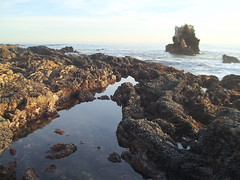 Every May our 5th graders take a field trip to the tide pools at Corona Del Mar to learn about marine life. Part of the follow up for that trip includes some sort of assignment about various tide pool animals that reside in our local marine habitat.
This year as part of my effort to promote creativity and digital storytelling, we decided to shake things up a bit. Each child was to select a creature from the tidepools and make a story about that creature. They would give it a name, talk about it's life in the tidepool, or tell a story about their creature's little adventure. Stories must be factually accurate and cannot include any plot elements that go beyond the creature's natural abilities, real life predators, or physical environment. (i.e. No "Sea Slugs in Space" stories.)
The project began with students sketching out their stories in class on a storyboard template. (Storyboard.pdf courtesy of Hall Davidson) Storyboards included the story's "script" - what the student would say for each image. Next, they began to work on their pictures in the computer lab. Pictures could be drawn in KidPix, created in PowerPoint and exported as a jpeg file, imported from the Internet (properly cited, of course), or any combination of the three.
Finished pictures were imported to PhotoStory3. Students recorded their narration and added music and titles. When the stories were finished, they were exported to a Windows Media file and submitted electronically to their teacher for grading using our school LMS.
Were we crazy to start a project like this with only 8 1/2 days left in the school year? Maybe, but nearly all the kids were able to complete and submit their projects by this morning's deadline. (School ends this Friday!) They will be sharing them in class this afternoon.
Here is one about Brittle Stars.
This is a story about two crabs that sneak out to do some "TP-ing" with seaweed.
NOTE: Because of the limited time available to complete the assignment, students were limited to three pictures for their stories. But even with that restriction, they were still able to come up with some pretty good projects. Hopefully next year we'll be able to give them a little more time.
PHOTO CREDIT: Judykay (flickr.com/photos/judykay/290095974)
Tuesday, April 29, 2008
Can't Buy Me Love
Today’s Limerick Challenge
(Inspired by NPR’s “Wait, Wait, Don’t Tell Me”)
One of the problems we have when it comes to spending is that technology has made it so much easier to separate us from our cash. In fact, cash seems to be less and less visible in favor of electronic and plastic currency. Why fumble with cash when you can just swipe a card? You’ve seen those Visa Check Card commercials where everything comes to a stop when some poor unenlightened soul tries to pay with cash? But do we really pay as much attention to our spending habits when our real money is reduced to plastic cards and numbers on a computer screen? According to author Dan Ariely (Predictably Irrational), this degree of separation from actual money can actually have an effect on our behavior - and our honesty. Listen to his comments on the recent Bear Stearns debacle.
At school we use manipulatives and computer software to teach kids how to recognize and count coins and bills, and how to make change. But I wonder if we are preparing them deal with a real world of debit/credit cards, online banking, and one-click shopping. Do they truly understand that those numbers on the screen are a real and just as important as cash in their pocket? How do we get them to think about good money management and sound financial decision making.
 One great media resource I like to use is BizKid$. This PBS series, made by the same team that produced Bill Nye-The Science Guy, is packed full of great lessons and positive examples of kids who understand proper money management. It’s fast paced and funny - I particularly like the Star Trek parodies - but it also teaches some simple and not-so-simple money management concepts in a way that connects with kids. The series is aimed at grades 4-7 and covers a variety of topics from “What is Money?” (Episode 2) to the “Global Economy” (Episode 20).
Their web site has video clips and a synopsis of each episode. Complete a free registration process and you’ll have access to teacher guides and classroom lessons developed by Junior Achievement. Check with your local PBS station to see about recording rights for your classroom.
Other sites/resources for money education:
Oh, and if the Dan Ariely clip caught your attention, check out his web site and his book, Predictably Irrational. I was fascinated by his thoughts on how we make decisions and the tricks our mind plays on us. Some of this will definitely come in handy dealing with kids in the classroom.
(Inspired by NPR’s “Wait, Wait, Don’t Tell Me”)
Our kids’ spending habits aren’t funny,Record numbers of home foreclosures. Over $4.00 for a gallon of gas. Food prices skyrocketing. Listen to the news and you wonder how much worse it’ll get before it starts to get better. When your money doesn’t go as far as it used to, you really need to learn to use it wisely. Think about the decisions you make when you spend money. Not just for big ticket items like a car and a house, either. Stop and think how much you spend every month at Starbucks too. Now stop and think what kind of example we are setting for our kids.
And their financial future ain’t sunny.
If they spend more than they get,
They’ll be buried in debt.
We must teach them to manage their _______.
One of the problems we have when it comes to spending is that technology has made it so much easier to separate us from our cash. In fact, cash seems to be less and less visible in favor of electronic and plastic currency. Why fumble with cash when you can just swipe a card? You’ve seen those Visa Check Card commercials where everything comes to a stop when some poor unenlightened soul tries to pay with cash? But do we really pay as much attention to our spending habits when our real money is reduced to plastic cards and numbers on a computer screen? According to author Dan Ariely (Predictably Irrational), this degree of separation from actual money can actually have an effect on our behavior - and our honesty. Listen to his comments on the recent Bear Stearns debacle.
At school we use manipulatives and computer software to teach kids how to recognize and count coins and bills, and how to make change. But I wonder if we are preparing them deal with a real world of debit/credit cards, online banking, and one-click shopping. Do they truly understand that those numbers on the screen are a real and just as important as cash in their pocket? How do we get them to think about good money management and sound financial decision making.
 One great media resource I like to use is BizKid$. This PBS series, made by the same team that produced Bill Nye-The Science Guy, is packed full of great lessons and positive examples of kids who understand proper money management. It’s fast paced and funny - I particularly like the Star Trek parodies - but it also teaches some simple and not-so-simple money management concepts in a way that connects with kids. The series is aimed at grades 4-7 and covers a variety of topics from “What is Money?” (Episode 2) to the “Global Economy” (Episode 20).
Their web site has video clips and a synopsis of each episode. Complete a free registration process and you’ll have access to teacher guides and classroom lessons developed by Junior Achievement. Check with your local PBS station to see about recording rights for your classroom.
Other sites/resources for money education:
- Hands On Banking - an interactive web site sponsored by Wells Fargo.
- Elementary Video Adventures: Money: Kids & Cash - Available to those of you with Discovery Streaming. (Log in and search for “Kids and Cash”.) It is a collection of 23 video segments for kids in grades 3-5.
Oh, and if the Dan Ariely clip caught your attention, check out his web site and his book, Predictably Irrational. I was fascinated by his thoughts on how we make decisions and the tricks our mind plays on us. Some of this will definitely come in handy dealing with kids in the classroom.
Saturday, April 12, 2008
Adventures in Google Apps
Over the past several weeks we've been exploring Google Apps for Education here at St. John's. I really like the way Google Docs allows for collaborating on projects, but the biggest hurdle that prevented us from using it in our middle school was a registration process that requires users to sign-up with an e-mail address. We can't require our students to have internet e-mail accounts. This is why we decided to try Google Apps for Education.
The process began with signing up our school, registering our domain, and setting up our site. Our reward came this week we when we actually started using it with 6th Grade.
Signing Up/Registering Our Domain
Signing up for Google Apps for Education begins at their site. This is where the process got a little confusing for me. Thankfully our school network administrator was there to help me through the process. The first thing they ask for is your domain name. We had a couple of domain names registered to our school that we were not using so we chose one of those.
Next we had to prove to Google that we actually owned our domain. This involved either uploading a unique HTML file they supplied to our site, or by changing something called the CNAME to redirect our site to Google. Since the name we selected to use was registered to us but not an active web site, we could not upload anything to it, so we had to change the CNAME. If this part sounds confusing to you, rest assured it was confusing to me too. Thankfully our network guy knew what to do. He had to go to the site where we registered our domain and make these changes.
It took almost a week for Google to verify that we had ownership of the domain, but once it was done we could go to our site and a custom Google start page (think - iGoogle) would appear. The page included links to Google Docs, GMail, GoogleTalk, Google Calendar, and any other modules I chose to add.
NOTE: Going to www.yourdomain.com would take you to your custom start page. You can go straight to Google Docs by typing docs.yourdomain.com.
Set-Up & Adding Users
The default settings in Google Apps for Education automatically creates GMail accounts for each of your users (Think: username@yourdomain.com). Since we did not want our students to have GMail accounts, we chose to disable the GMail feature, along with GoogleTalk (Chat is blocked by our firewall anyway) and Calendar (our school site already has a calendar). This basically left Google Docs.
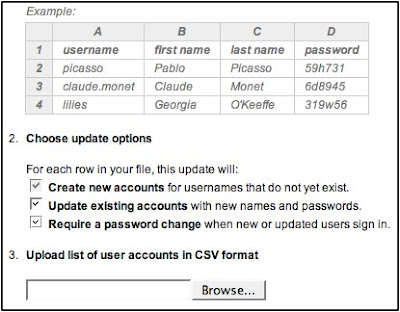
To get our students into the system I was able to export their usernames from our learning system into an Excel CSV file, tweak the spreadsheet a little so it looks like the one below, and upload them to our Google site. For student passwords I just assigned them a generic password and checked a box that requires them to change it the first time they login.
Our First Project
Our 6th grade history teacher wanted his students to collaborate on their class notes for his lesson on the Age of Pericles. He created a Google Presentation with a single question on each slide. We decided it would be easier for a first project to have students each working on their own slide as opposed to editing over each other on the same text document. That presentation was copied multiple times - one for each group of 4 or 5 students. Students were were then invited to collaborate on their copy of the presentation.
For the introductory lesson we just showed students how to login and access the presentation. Even though their usernames had already been imported to our Google system, for their first login they still had to do two levels of "type the squiggly word" and click on the "agree to terms" button to verify their account. We showed them the Common Craft Google Docs video to give the kids an idea how Google Docs work. Then we showed them how to open & edit their copy of the presentation. Student groups had to decide who was going to work on which slide. Their assignment was to go home and work on their questions so their answers could be shared in class the next day.
What was the first thing they all started doing? Changing the themes and watching the screen change on each of the PC's in their group. I've to to admit, that is kind of empowering - and fun. The next day, out of three class periods, all but 2 or 3 students had completed their assignment.
NOTE: The ones that didn't finish had copied the web site incorrectly in their assignment book.
The process began with signing up our school, registering our domain, and setting up our site. Our reward came this week we when we actually started using it with 6th Grade.
Signing Up/Registering Our Domain
Signing up for Google Apps for Education begins at their site. This is where the process got a little confusing for me. Thankfully our school network administrator was there to help me through the process. The first thing they ask for is your domain name. We had a couple of domain names registered to our school that we were not using so we chose one of those.
Next we had to prove to Google that we actually owned our domain. This involved either uploading a unique HTML file they supplied to our site, or by changing something called the CNAME to redirect our site to Google. Since the name we selected to use was registered to us but not an active web site, we could not upload anything to it, so we had to change the CNAME. If this part sounds confusing to you, rest assured it was confusing to me too. Thankfully our network guy knew what to do. He had to go to the site where we registered our domain and make these changes.
It took almost a week for Google to verify that we had ownership of the domain, but once it was done we could go to our site and a custom Google start page (think - iGoogle) would appear. The page included links to Google Docs, GMail, GoogleTalk, Google Calendar, and any other modules I chose to add.
NOTE: Going to www.yourdomain.com would take you to your custom start page. You can go straight to Google Docs by typing docs.yourdomain.com.
Set-Up & Adding Users
The default settings in Google Apps for Education automatically creates GMail accounts for each of your users (Think: username@yourdomain.com). Since we did not want our students to have GMail accounts, we chose to disable the GMail feature, along with GoogleTalk (Chat is blocked by our firewall anyway) and Calendar (our school site already has a calendar). This basically left Google Docs.
To get our students into the system I was able to export their usernames from our learning system into an Excel CSV file, tweak the spreadsheet a little so it looks like the one below, and upload them to our Google site. For student passwords I just assigned them a generic password and checked a box that requires them to change it the first time they login.

Our First Project
Our 6th grade history teacher wanted his students to collaborate on their class notes for his lesson on the Age of Pericles. He created a Google Presentation with a single question on each slide. We decided it would be easier for a first project to have students each working on their own slide as opposed to editing over each other on the same text document. That presentation was copied multiple times - one for each group of 4 or 5 students. Students were were then invited to collaborate on their copy of the presentation.
For the introductory lesson we just showed students how to login and access the presentation. Even though their usernames had already been imported to our Google system, for their first login they still had to do two levels of "type the squiggly word" and click on the "agree to terms" button to verify their account. We showed them the Common Craft Google Docs video to give the kids an idea how Google Docs work. Then we showed them how to open & edit their copy of the presentation. Student groups had to decide who was going to work on which slide. Their assignment was to go home and work on their questions so their answers could be shared in class the next day.
What was the first thing they all started doing? Changing the themes and watching the screen change on each of the PC's in their group. I've to to admit, that is kind of empowering - and fun. The next day, out of three class periods, all but 2 or 3 students had completed their assignment.
NOTE: The ones that didn't finish had copied the web site incorrectly in their assignment book.
Monday, March 17, 2008
Every Place Has a Story
Imagine this...
 You've just experienced place-based learning. This weekend I had a chance to attend a workshop at KQED in San Francisco. Leslie Rule of KQED led the discussion as we shared ideas and brainstormed ways that place and space can be used to add an extra dimension to learning.
Many of us have seen how tools like Google Maps and Google Earth can connect us virtually with just about any place on the planet. Google Lit Trips takes events from books and links them to places. Imagine following the journey of the Joad family from Steinbeck's Grapes of Wrath, or the story of gold seekers traveling from Boston to California in Sid Fleishman's The Great Horn Spoon.
Google Maps is valuable tool for organizing data and information by location. During the California wildfires last fall KPBS used Google Maps to share place-specific information with the public and alert communities of evacuation areas and road closures.
Using Google Street-View you can virtually stand in Dealy Plaza and survey the scene where JFK was shot, look up at the 6th story window where Oswald was perched waiting for the motorcade to pass by, and click down the street to the spot where the fatal shot struck the President.
While these types of place-based learning can all be done from the comfort of your own computer screen, the real power of place-based learning happens when you step outside the classroom and into the real world. You experience the content while standing in the actual spot - seeing, hearing, smelling, and feeling it for yourself. This is where things really start to get fun.
 Using GPS enabled PDA's and Mediascape software Leslie showed us how to actually create a simple version of the imagined projects described above. We pulled in a picture from Google Earth of the area just outside KQED and programmed in the longitude and latitude coordinates. Then we created zones on certain areas of the map and imported pre-recorded audio that would play when the device entered those zones. Once the "mediascape" was created it was downloaded to the PDA and we ran outside to test it out.
 We turned on the PDA's, waited for the GPS to acquire our position, and opened our downloaded file. The map and zones appeared on the screen we started walking. Upon entering a zone an audio clip started to play. As we stepped out of that zone the clip stopped. Errors in the GPS positioning meant that different PDA's were triggered in different spots, but for the most part, the experiment worked!
Admittedly, the technology we used was a little glitchy and it may be a while before this type of project becomes practical. The software we used only works with Windows and Windows Mobile enabled devices. Since not many PDA's are equipped with GPS capability, we had to use a separate bluetooth GPS unit to feed our position to the PDA's. It worked for some and not for others, but everyone did get a vision of how powerful this type of learning could be.
Even if you don't have all the equipment you need right now, you can still start thinking about and creating place-based content with technology you already possess. For example, you or your students could record content and upload it to your web site. That information could be downloaded to an iPod or mp3 player. Your students could use handheld GPS units or even paper maps to indicate where to play certain tracks. Then, in the future if you do get PDA's , that recorded information would be ready-made and easily moved to a GPS enabled hand-held device.
If you have no equipment at all, you can still create an educational "treasure hunt" called an EdTrek. KQED's Quest web site has an example and instructions for creating your own.
However you choose to implement it, the important thing to remember about place-based learning is that every place has a story. It could be geological, historical, personal, or inspirational. For your students it could be a specific place that works like a trigger to get them writing.
Place-Based Learning Resources:
Create-A-Scape - Software to create a mediascape.
KQED Sample Quest
Lesson Plan for Creating an Ed-Trek Activity
"No Student Left Indoors" by Jane Kirkland
Google Lit Trips
NOTE: I would not have been able to attend this workshop without a generous invitation from Janet English of KOCE. Thanks Janet for the invite and for all you do to support teachers and technology in Orange County.
- You're on visiting a historic Civil War battlefield. You're carrying a GPS enabled PDA with you. As you walk into a particular area your PDA starts playing a recorded story of what happened on that spot. Old photos appear on the screen showing what you might have seen had you been standing there 145 years ago. As you leave that area, the audio fades out. You continue exploring and as you do different voices, sounds, and images appear specific to those locations. It's as if those places are reaching through history to tell you their story.
- You're walking through a park near your home with that same PDA. Suddenly a voice prompts you to stop and look around. It points out specific geological or natural features visible from where you are standing.
- You're strolling through the neighborhood near your school. As you walk through certain areas you hear poetry, music, or stories written by your students who were inspired by those locations.
 You've just experienced place-based learning. This weekend I had a chance to attend a workshop at KQED in San Francisco. Leslie Rule of KQED led the discussion as we shared ideas and brainstormed ways that place and space can be used to add an extra dimension to learning.
Many of us have seen how tools like Google Maps and Google Earth can connect us virtually with just about any place on the planet. Google Lit Trips takes events from books and links them to places. Imagine following the journey of the Joad family from Steinbeck's Grapes of Wrath, or the story of gold seekers traveling from Boston to California in Sid Fleishman's The Great Horn Spoon.
Google Maps is valuable tool for organizing data and information by location. During the California wildfires last fall KPBS used Google Maps to share place-specific information with the public and alert communities of evacuation areas and road closures.
Using Google Street-View you can virtually stand in Dealy Plaza and survey the scene where JFK was shot, look up at the 6th story window where Oswald was perched waiting for the motorcade to pass by, and click down the street to the spot where the fatal shot struck the President.
While these types of place-based learning can all be done from the comfort of your own computer screen, the real power of place-based learning happens when you step outside the classroom and into the real world. You experience the content while standing in the actual spot - seeing, hearing, smelling, and feeling it for yourself. This is where things really start to get fun.
 Using GPS enabled PDA's and Mediascape software Leslie showed us how to actually create a simple version of the imagined projects described above. We pulled in a picture from Google Earth of the area just outside KQED and programmed in the longitude and latitude coordinates. Then we created zones on certain areas of the map and imported pre-recorded audio that would play when the device entered those zones. Once the "mediascape" was created it was downloaded to the PDA and we ran outside to test it out.
 We turned on the PDA's, waited for the GPS to acquire our position, and opened our downloaded file. The map and zones appeared on the screen we started walking. Upon entering a zone an audio clip started to play. As we stepped out of that zone the clip stopped. Errors in the GPS positioning meant that different PDA's were triggered in different spots, but for the most part, the experiment worked!
Admittedly, the technology we used was a little glitchy and it may be a while before this type of project becomes practical. The software we used only works with Windows and Windows Mobile enabled devices. Since not many PDA's are equipped with GPS capability, we had to use a separate bluetooth GPS unit to feed our position to the PDA's. It worked for some and not for others, but everyone did get a vision of how powerful this type of learning could be.
Even if you don't have all the equipment you need right now, you can still start thinking about and creating place-based content with technology you already possess. For example, you or your students could record content and upload it to your web site. That information could be downloaded to an iPod or mp3 player. Your students could use handheld GPS units or even paper maps to indicate where to play certain tracks. Then, in the future if you do get PDA's , that recorded information would be ready-made and easily moved to a GPS enabled hand-held device.
If you have no equipment at all, you can still create an educational "treasure hunt" called an EdTrek. KQED's Quest web site has an example and instructions for creating your own.
However you choose to implement it, the important thing to remember about place-based learning is that every place has a story. It could be geological, historical, personal, or inspirational. For your students it could be a specific place that works like a trigger to get them writing.
- Tell about something that happened here.
- How does this place make you feel?
- Use your words to describe the sights, sounds, textures, and smells.
Place-Based Learning Resources:
Create-A-Scape - Software to create a mediascape.
KQED Sample Quest
Lesson Plan for Creating an Ed-Trek Activity
"No Student Left Indoors" by Jane Kirkland
Google Lit Trips
NOTE: I would not have been able to attend this workshop without a generous invitation from Janet English of KOCE. Thanks Janet for the invite and for all you do to support teachers and technology in Orange County.
Tuesday, January 08, 2008
Lessons from Mary Poppins
Do you remember the Disney classic Mary Poppins? I just happened find it on the ABC Family Channel over Christmas break and took the opportunity to watch it again for the first time in many years. I was surprised to find myself humming along with the music - many of the songs I remembered from my childhood. I was also impressed by the visual effects which were pretty cutting edge for 1964. But what stood out for me, perhaps for the first time, were all the little words of advice and mini-lessons presented by the title character. I know I may be stretching things a bit, but I think Mary Poppins has a lot to teach us about how we should be using technology in our classrooms - if we take a little time to listen to what she has to say.

My niece sharing a photo op with Mary Poppins at Disney World.
A Spoonful of Sugar
And don’t forget to save a spoonful of sugar for yourself too. If you’re bored with the lesson you are teaching, imagine what your students must be feeling! Make your lessons fun and interesting for yourself as well. Your enthusiasm is contagious and will infect the kids your teach.
At a loss for ideas? Here’s a few to get your brain going...
Kindergarten Voicethread Projects from Bridget Belardi (Sorry about your Steelers Bridget. There’s always next year.)
Digital Riddles from Jennifer Gingerich
iPods in Education - Have a little fun yourself! Use your iPod in your classroom, or try your hand at Podcasting.
Jump into a Chalk Drawing
Be creative. Let your imagination go wild! By third grade we manage to stifle much of the creativity kids had when they started Kindergarten and replace it with repetition and routine. If you haven’t seen the video from Sir Ken Robinson yet, now would be a good time. ("Do Schools Kill Creativity?") Provide your students with opportunities to imagine, invent, and create. Not only are these skills important for your students personally, according to Daniel Pink (“A Whole New Mind”) they are a vital part of the new economy.
Currently our 5th grade students are using their online class discussion forum to imagine and write endings to some of the Harris Burdick mysteries and comment on what their classmates have done. Since the forum is protected, I can’t share their work publicly, but here is a link to the book to give you an idea of what it is all about. (The Mysteries of Harris Burdick by Chris Van Allsburg) This is a great book for getting students’ imaginations going. It’s fun to watch them mentally “jump” into the pictures as they create their stories here in the computer lab.
There are also many web tools out there that let students imagine, create, and invent. Here are just a few:
Scrapblog
Scratch
Kerpoof
Chim Chim Cher-ee
Chimney sweeps are people too. Take time to learn about, and empathize with those who come from a place or culture different from your own. You may find you have more in common than you think. Consider a collaborative project with a class in another state or country. By sharing comments or contributing to a group project blog or wiki they may learn more than just the subject they are studying.
Using communication tools like Skype or iChat, your students can connect easily with other classes in different states or countries. During the recent Southern California wildfires some of our teachers had a chance to video conference with Martha Thornburgh’s students in Washington. They were able to ask questions and learn about what we were going through. No, Disneyland did not burn down. It was just fine. (Martha, if your class would like to Skype again sometime let me know.)
Voicethread is another great tool for collaborative projects. Recently they’ve added some extra capabilities. You are no longer limited to voice comments. Now, if you have a webcam, you can leave video comments too.
Feed the Birds
Your students can make a difference in the world - if they’re given a chance. In the movie, Michael causes a scene at the bank when he decides he’d rather give his tuppence to the lady who feeds the birds rather than deposit it in the bank for himself. Give your students an opportunity to make a difference in their community with projects that extend beyond the classroom.
I Love To Laugh
And you should too! How serious is your classroom? How serious are you? Laughter helps keep you healthy and should be a regular part of your day. (Laughter Therapy from NPR News) So when technology doesn’t work in your classroom, don’t freak out. Laugh about it. You’ll relieve the tension in your room and you may clear your head enough to come up with a fun alternative solution. In fact take a little time right now to laugh. I bet you can’t watch the following video with out at least cracking a smile.

My niece sharing a photo op with Mary Poppins at Disney World.
A Spoonful of Sugar
“In every job that must be done there is an element of fun. You find the fun and - SNAP - the job’s a game.”If learning is medicine, why not make learning fun? Use the technology tools available to you and design engaging assignments that your students can get excited about. If you’re the kind of teacher that insists on a silent classroom, you may have to make some adjustments. Kids that are excited and having fun are rarely quiet. Better to worry about keeping them on task, rather than keeping them silent. Remember, adding fun to your lessons means more than just providing a fun reward at the end of a dull assignment. The learning process itself should be the reward.
And don’t forget to save a spoonful of sugar for yourself too. If you’re bored with the lesson you are teaching, imagine what your students must be feeling! Make your lessons fun and interesting for yourself as well. Your enthusiasm is contagious and will infect the kids your teach.
At a loss for ideas? Here’s a few to get your brain going...
Kindergarten Voicethread Projects from Bridget Belardi (Sorry about your Steelers Bridget. There’s always next year.)
Digital Riddles from Jennifer Gingerich
iPods in Education - Have a little fun yourself! Use your iPod in your classroom, or try your hand at Podcasting.
Jump into a Chalk Drawing
Be creative. Let your imagination go wild! By third grade we manage to stifle much of the creativity kids had when they started Kindergarten and replace it with repetition and routine. If you haven’t seen the video from Sir Ken Robinson yet, now would be a good time. ("Do Schools Kill Creativity?") Provide your students with opportunities to imagine, invent, and create. Not only are these skills important for your students personally, according to Daniel Pink (“A Whole New Mind”) they are a vital part of the new economy.
Currently our 5th grade students are using their online class discussion forum to imagine and write endings to some of the Harris Burdick mysteries and comment on what their classmates have done. Since the forum is protected, I can’t share their work publicly, but here is a link to the book to give you an idea of what it is all about. (The Mysteries of Harris Burdick by Chris Van Allsburg) This is a great book for getting students’ imaginations going. It’s fun to watch them mentally “jump” into the pictures as they create their stories here in the computer lab.
There are also many web tools out there that let students imagine, create, and invent. Here are just a few:
Scrapblog
Scratch
Kerpoof
Chim Chim Cher-ee
Chimney sweeps are people too. Take time to learn about, and empathize with those who come from a place or culture different from your own. You may find you have more in common than you think. Consider a collaborative project with a class in another state or country. By sharing comments or contributing to a group project blog or wiki they may learn more than just the subject they are studying.
Using communication tools like Skype or iChat, your students can connect easily with other classes in different states or countries. During the recent Southern California wildfires some of our teachers had a chance to video conference with Martha Thornburgh’s students in Washington. They were able to ask questions and learn about what we were going through. No, Disneyland did not burn down. It was just fine. (Martha, if your class would like to Skype again sometime let me know.)
Voicethread is another great tool for collaborative projects. Recently they’ve added some extra capabilities. You are no longer limited to voice comments. Now, if you have a webcam, you can leave video comments too.
Feed the Birds
Your students can make a difference in the world - if they’re given a chance. In the movie, Michael causes a scene at the bank when he decides he’d rather give his tuppence to the lady who feeds the birds rather than deposit it in the bank for himself. Give your students an opportunity to make a difference in their community with projects that extend beyond the classroom.
I Love To Laugh
And you should too! How serious is your classroom? How serious are you? Laughter helps keep you healthy and should be a regular part of your day. (Laughter Therapy from NPR News) So when technology doesn’t work in your classroom, don’t freak out. Laugh about it. You’ll relieve the tension in your room and you may clear your head enough to come up with a fun alternative solution. In fact take a little time right now to laugh. I bet you can’t watch the following video with out at least cracking a smile.
Wednesday, September 12, 2007
BWAIN (Blog Without an Interesting Name)
Normally I try to come up with some sort of catchy title for my blog posts. For some reason I just blanked on this one. Sorry 'bout that.
To make up for it though, I thought I'd share a few interesting lesson ideas and web resources that I've sent out to our teachers during the first two weeks of school. Here goes...
Futures Channel (www.futureschannel.com)
Ever have kids in your science and math classes ask you, "Why do I need to know this stuff?" Here's your answer. This site has videos of real people using real math and real science in real life! The videos also have printable (PDF) classroom activities.
Math Playground (www.mathplayground.com)
Need an activity for your students in the computer lab? Or would you like to recommend something they could use to practice their math skills at home? This is it. I actually met creator Colleen King, or rather her Second Life alter ego Kristy Flanagan, while chatting at the Bloggers Cafe. (NOTE: Second Lifers should also check out the Math Playground Virtual Math Center on EduIsland II)
HM Technology Resources (hmtech.wikispaces.com)
For those of you using Houghton Mifflin's Reading series, here's a site with links to supporting web resources compiled by Eva Wagner.
ReadWrite Think: Student Materials (www.readwritethink.org/student_mat)
This site contains a whole collection of online activities for your students to work on at school or at home. Browse through this rather extensive list and try out a few that look interesting. When you click on the tool, you'll get a list of grade specific lessons that could be used with it. See how these tools might fit into your Language Arts or Literature curriculum.
Back to School PhotoStory3 Project (web.mac.com/jennifergingerich)
Jennifer Gingerich comes up with yet another one of those "its so simple why didn't I think of it" ideas. This great project for primary grades can be created using a digital camera and Microsoft's PhotoStory3 or Apple's iMovie. I love hearing the kids' voices on the video.
Now the race is on! Who will be the first to use one of these ideas or resources in their classroom this year? Will it be one of our teachers? Or will it be you? If it's you, please post a comment and let me know how it went.
To make up for it though, I thought I'd share a few interesting lesson ideas and web resources that I've sent out to our teachers during the first two weeks of school. Here goes...
Futures Channel (www.futureschannel.com)
Ever have kids in your science and math classes ask you, "Why do I need to know this stuff?" Here's your answer. This site has videos of real people using real math and real science in real life! The videos also have printable (PDF) classroom activities.
Math Playground (www.mathplayground.com)
Need an activity for your students in the computer lab? Or would you like to recommend something they could use to practice their math skills at home? This is it. I actually met creator Colleen King, or rather her Second Life alter ego Kristy Flanagan, while chatting at the Bloggers Cafe. (NOTE: Second Lifers should also check out the Math Playground Virtual Math Center on EduIsland II)
HM Technology Resources (hmtech.wikispaces.com)
For those of you using Houghton Mifflin's Reading series, here's a site with links to supporting web resources compiled by Eva Wagner.
ReadWrite Think: Student Materials (www.readwritethink.org/student_mat)
This site contains a whole collection of online activities for your students to work on at school or at home. Browse through this rather extensive list and try out a few that look interesting. When you click on the tool, you'll get a list of grade specific lessons that could be used with it. See how these tools might fit into your Language Arts or Literature curriculum.
Back to School PhotoStory3 Project (web.mac.com/jennifergingerich)
Jennifer Gingerich comes up with yet another one of those "its so simple why didn't I think of it" ideas. This great project for primary grades can be created using a digital camera and Microsoft's PhotoStory3 or Apple's iMovie. I love hearing the kids' voices on the video.
Now the race is on! Who will be the first to use one of these ideas or resources in their classroom this year? Will it be one of our teachers? Or will it be you? If it's you, please post a comment and let me know how it went.
Saturday, August 25, 2007
Pecha Kucha
I've seen a lot of bad Power Point. I've been through the agony of bulleted lists in which the presenter read exactly what they wrote, or droned on and on and stretched 5 slides to 60 minutes pointless examples and enough tangents to give a calculus teacher a headache.
What I read in David Warlick's blog today intrigued me. Pecha Kucha is a structured presentation format developed in Japan back in 2003.
It was originally designed for use by those in the creative fields - art, photography, design, architecture - (see Wikipedia Article) but I believe this type of format could have some useful education applications as well.
What struck me first was the structure. It's like visual poetry. Remember back in high school when you had to write poems? Some types, like haiku, had a very specific structure that you were forced to follow. I remember struggling to be creative while at the same time, sticking to the rules. I hated it, but it really made me focus. How can I say what I want to say effectively within the parameters I've been given?
Pecha Kucha takes that kind of structure and applies it to visual presentations. It forces you to edit what you say so that you are concise and to the point. You also need to make sure you select meaningful visuals - visuals that give impact and emphasis to your words.
Imagine using this format for in-class presentations. Tell your students that their history reports need to be presented in Pecha Kucha format - 20 slides, shown for 20 seconds each. Make a Pecha Kucha describing he fall of the Roman Empire. Make one that shows why we need to recycle, or explains the importance of preserving a local wetland. If 20 slides is too much for the assignment you can, as David Warlick suggests, assign Half Kuchas (10 slides) or Quarter Kuchas (5 slides).
I'd love to hear any Pecha Kucha assignment or project ideas you have.
What I read in David Warlick's blog today intrigued me. Pecha Kucha is a structured presentation format developed in Japan back in 2003.
Each presenter is allowed 20 images, each shown for 20 seconds each - giving 6 minutes 40 seconds of fame before the next presenter is up. This keeps presentations concise, the interest level up, and gives more people the chance to show. http://www.pecha-kucha.org/
It was originally designed for use by those in the creative fields - art, photography, design, architecture - (see Wikipedia Article) but I believe this type of format could have some useful education applications as well.
What struck me first was the structure. It's like visual poetry. Remember back in high school when you had to write poems? Some types, like haiku, had a very specific structure that you were forced to follow. I remember struggling to be creative while at the same time, sticking to the rules. I hated it, but it really made me focus. How can I say what I want to say effectively within the parameters I've been given?
Pecha Kucha takes that kind of structure and applies it to visual presentations. It forces you to edit what you say so that you are concise and to the point. You also need to make sure you select meaningful visuals - visuals that give impact and emphasis to your words.
Imagine using this format for in-class presentations. Tell your students that their history reports need to be presented in Pecha Kucha format - 20 slides, shown for 20 seconds each. Make a Pecha Kucha describing he fall of the Roman Empire. Make one that shows why we need to recycle, or explains the importance of preserving a local wetland. If 20 slides is too much for the assignment you can, as David Warlick suggests, assign Half Kuchas (10 slides) or Quarter Kuchas (5 slides).
I'd love to hear any Pecha Kucha assignment or project ideas you have.
Tuesday, July 31, 2007
A Digital Story
Digital Storytelling is a powerful way for your students to express their creativity. It's more than just a product, it's also about the process. Let me explain...
My grandfather, Roy Grice (I call him "Grampa"), is 96 years old. Last week I had a unique opportunity to travel with him down to San Diego to see the USS Midway, a retired aircraft carrier, now turned into a floating museum at the Navy Pier in San Diego, CA.
While we explored the ship, it brought back memories of his days in the Navy. Thankfully I was able to record some of his recollections and put them together into the podcast embedded below. While the recording probably has more value to me and my family, it also offers a glimpse into one man's view of history - as he experienced it.
It's important to me, that his stories live on after he is gone. With the digital tools available today, recording and sharing those stories is now easier than ever.
While editing this podcast together I must have listened to it more than a dozen times. By going through this process I know I'll retain much more of what Grampa told me - more than I ever would have just listening to him tell it to me once. Plus, I'll be able to go back to it as often as I want.
What digital stories could your students share?
Listen to Grandpa's Story...

The USS Midway Museum

"Grampa" next to a milling machine in the USS Midway machine shop.
Technical Info:
My grandfather, Roy Grice (I call him "Grampa"), is 96 years old. Last week I had a unique opportunity to travel with him down to San Diego to see the USS Midway, a retired aircraft carrier, now turned into a floating museum at the Navy Pier in San Diego, CA.
While we explored the ship, it brought back memories of his days in the Navy. Thankfully I was able to record some of his recollections and put them together into the podcast embedded below. While the recording probably has more value to me and my family, it also offers a glimpse into one man's view of history - as he experienced it.
It's important to me, that his stories live on after he is gone. With the digital tools available today, recording and sharing those stories is now easier than ever.
While editing this podcast together I must have listened to it more than a dozen times. By going through this process I know I'll retain much more of what Grampa told me - more than I ever would have just listening to him tell it to me once. Plus, I'll be able to go back to it as often as I want.
What digital stories could your students share?
Listen to Grandpa's Story...

The USS Midway Museum

"Grampa" next to a milling machine in the USS Midway machine shop.
Technical Info:
- Audio edited using iMovie and exported as a .aif file. (I didn't have a voice recorder, so I used a camcorder to capture the audio.)
- Converted to .mp3 using Audacity.
- Mp3 file uploaded to GCast.
Monday, July 23, 2007
Tech Tips from the Bahamas
As I mentioned in the previous post, I was honored to be a part the Discovery National Institute last week. Fifty talented educators from 17 states spent a week together on the Carnival Sensation cruising to Nassau and Freeport in the Bahamas. But don't let the words "cruise" and "Bahamas" mislead you - we worked! There were training sessions, group projects, and lots of networking and idea sharing.
What follows is my attempt to list of some of the ideas and resources shared by these amazing teachers, tech trainers, and media specialists.
Note: If anyone from the cruise is reading this, please add a comment to include any great ideas or resources I may have missed.
Science
Stellarium (www.stellarium.org)
From Amy L., Bend, OR
Think of it as Google Earth for the sky. Put in any location and see the night sky and constellations visible from that spot at that day and time. You can also project forward or look backward in time. Requires you to download and install their free application. Versions available for Windows, Mac, and Linux.
The Rock Dating Game (see previous post)
From Howard M - TX, Marty G - MI, Chris P - FL, Dave K - CA, and ME!
Good for 6th Grade Earth Science. Compare and contrast Metamorphic, Igneous, and Sedimentary rocks. Includes an Inspiration graphic organizer and a Unitedstreaming writing prompt.
Language Arts & Writing
Knight Cite (www.calvin.edu/library/knightcite)
From Rachel H., WI
An online tool for creating proper MLA, APA, and Chicago style citations.
Math/Social Studies
Dollar Around The World
From Rachel H - WI, Diana L - AZ, Kim R - CA, Jennifer D - PA, Tanya G - KS
Learn about other countries and currency conversion as your students investigate the value of a dollar around the world.
Assignment directions and web resources (Word File)
International Currency Factsheet (PDF)
Student Notebook (PDF)
Unitedstreaming Assignment
Social Studies/Geography
Where in the World? (web.mac.com/jennifergingerich)
From Jennifer G - OR, Carole G - FL, Beverly P - NJ, Dedra S - OK, Donna T - SC
Remember Carmen Sandiego? This project has students taking video clips from Unitedstreaming and breaking them into little "clues" that their classmates have to solve in order to guess where they are hiding. The project includes a writing prompt and quiz on Unitedstreaming and an Inspiration template with project guidelines.
CommunityWalk (www.communitywalk.com)
From Amy L., Bend, OR
This site lets you or your students create a "tour" by adding placemarks to a map. Each placemark can contain information, links, and/or pictures about that location. Possible uses include mapping out specific landmarks along the Oregon Trail, or creating a virtual tour of local historical sites in your hometown.
Library, Media, and Teacher Tools
Good Reads (www.goodreads.com)
From Bridget B., PA
Read any good books lately? Write a review and post it here. This site is great for connecting you with others who have read the same book and have similar tastes. Use it to create literature circles among your staff or with your students.
Bridget was also involved in the creation of this great video promoting their school library - a must see! (http://multimedia.mtlsd.org/Play.asp?FILEID=12429) Requires Windows Media Player.
Teacher Tube (www.teachertube.com)
From Jennifer G., OR
This is basically YouTube for teachers. It contains online video tutorials, student and teacher created projects, professional development, and more. Teachers can create a free account and use it to host their own videos. Make sure your school doesn't block this one! (You might even win a laptop computer.)
Inspired Learning Community (www.inspiredlearningcommunity.com)
From Jennifer G., OR
Have you created a great Inspiration or Kidspiration lesson? Post it here. Looking for a good one? Search for it here. This is a huge library of teacher created Inspiration and Kidspiration templates searchable by grade level and topic.
Flickr Toys (www.bighugelabs.com/flickr)
From Jeanine B., WI
So you've posted your pictures to Flickr - now what? This site of full of toys to enhance your Flickr experience and have fun with your photos. Make motivational posters, trading cards, movie posters, mosaics, calendars, and much more.

Flip Video (www.theflip.com)
From Katie K., VA
This $85 video camera holds 30 minutes of 640x480 video on its 512MB of internal memory. Video is saved in AVI format and can be transferred to your computer using the flip-out USB connector. You can also watch video on your TV using the supplied video cable.
FMO: For MAC Only
3-2-1 Countdown Widget (www.apple.com/downloads/dashboard/calculate_convert/321.html)
From Amy L., OR
A great little classroom management tool. Add this to your OSX widgets and use it in your classroom to countdown to recess, free time, or to time a test.
Bluetooth File Sharing
From Howard M., Austin, TX
Howard showed me this impressive little trick to wirelessly transfer files to and from Mac via bluetooth. No WiFi connection necessary.
1) Make sure Bluetooth is turned on and both machines are discoverable.
2) Go to the Utilities and open Bluetooth File Exchange.
3) Select the file you want to send to your friends Mac. Click SEND.
4) Select the name of your friend's computer from the list of available devices. Click SEND.
A windows will pop-up on your friend's computer telling them that you are sending them a file. All they need to do is click ACCEPT. The file will be saved on their machine. Is that cool or what?!
What follows is my attempt to list of some of the ideas and resources shared by these amazing teachers, tech trainers, and media specialists.
Note: If anyone from the cruise is reading this, please add a comment to include any great ideas or resources I may have missed.
Science
Stellarium (www.stellarium.org)
From Amy L., Bend, OR
Think of it as Google Earth for the sky. Put in any location and see the night sky and constellations visible from that spot at that day and time. You can also project forward or look backward in time. Requires you to download and install their free application. Versions available for Windows, Mac, and Linux.
The Rock Dating Game (see previous post)
From Howard M - TX, Marty G - MI, Chris P - FL, Dave K - CA, and ME!
Good for 6th Grade Earth Science. Compare and contrast Metamorphic, Igneous, and Sedimentary rocks. Includes an Inspiration graphic organizer and a Unitedstreaming writing prompt.
Language Arts & Writing
Knight Cite (www.calvin.edu/library/knightcite)
From Rachel H., WI
An online tool for creating proper MLA, APA, and Chicago style citations.
Math/Social Studies
Dollar Around The World
From Rachel H - WI, Diana L - AZ, Kim R - CA, Jennifer D - PA, Tanya G - KS
Learn about other countries and currency conversion as your students investigate the value of a dollar around the world.
Assignment directions and web resources (Word File)
International Currency Factsheet (PDF)
Student Notebook (PDF)
Unitedstreaming Assignment
Social Studies/Geography
Where in the World? (web.mac.com/jennifergingerich)
From Jennifer G - OR, Carole G - FL, Beverly P - NJ, Dedra S - OK, Donna T - SC
Remember Carmen Sandiego? This project has students taking video clips from Unitedstreaming and breaking them into little "clues" that their classmates have to solve in order to guess where they are hiding. The project includes a writing prompt and quiz on Unitedstreaming and an Inspiration template with project guidelines.
CommunityWalk (www.communitywalk.com)
From Amy L., Bend, OR
This site lets you or your students create a "tour" by adding placemarks to a map. Each placemark can contain information, links, and/or pictures about that location. Possible uses include mapping out specific landmarks along the Oregon Trail, or creating a virtual tour of local historical sites in your hometown.
Library, Media, and Teacher Tools
Good Reads (www.goodreads.com)
From Bridget B., PA
Read any good books lately? Write a review and post it here. This site is great for connecting you with others who have read the same book and have similar tastes. Use it to create literature circles among your staff or with your students.
Bridget was also involved in the creation of this great video promoting their school library - a must see! (http://multimedia.mtlsd.org/Play.asp?FILEID=12429) Requires Windows Media Player.
Teacher Tube (www.teachertube.com)
From Jennifer G., OR
This is basically YouTube for teachers. It contains online video tutorials, student and teacher created projects, professional development, and more. Teachers can create a free account and use it to host their own videos. Make sure your school doesn't block this one! (You might even win a laptop computer.)
Inspired Learning Community (www.inspiredlearningcommunity.com)
From Jennifer G., OR
Have you created a great Inspiration or Kidspiration lesson? Post it here. Looking for a good one? Search for it here. This is a huge library of teacher created Inspiration and Kidspiration templates searchable by grade level and topic.
Flickr Toys (www.bighugelabs.com/flickr)
From Jeanine B., WI
So you've posted your pictures to Flickr - now what? This site of full of toys to enhance your Flickr experience and have fun with your photos. Make motivational posters, trading cards, movie posters, mosaics, calendars, and much more.

Flip Video (www.theflip.com)
From Katie K., VA
This $85 video camera holds 30 minutes of 640x480 video on its 512MB of internal memory. Video is saved in AVI format and can be transferred to your computer using the flip-out USB connector. You can also watch video on your TV using the supplied video cable.
FMO: For MAC Only
3-2-1 Countdown Widget (www.apple.com/downloads/dashboard/calculate_convert/321.html)
From Amy L., OR
A great little classroom management tool. Add this to your OSX widgets and use it in your classroom to countdown to recess, free time, or to time a test.
Bluetooth File Sharing
From Howard M., Austin, TX
Howard showed me this impressive little trick to wirelessly transfer files to and from Mac via bluetooth. No WiFi connection necessary.
1) Make sure Bluetooth is turned on and both machines are discoverable.
2) Go to the Utilities and open Bluetooth File Exchange.
3) Select the file you want to send to your friends Mac. Click SEND.
4) Select the name of your friend's computer from the list of available devices. Click SEND.
A windows will pop-up on your friend's computer telling them that you are sending them a file. All they need to do is click ACCEPT. The file will be saved on their machine. Is that cool or what?!
Sunday, July 22, 2007
Don’t Take Him for Granite
Sometimes the best way to discourage plagiarism among your students is to come up with an assignment that forces them to take information and present it in a whole new way.
In this project, developed by a team of top educators at the Discovery National Institute, students compare and contrast three similar, but different people, places or things. The three things appear as bachelors on a dating show. The bachelorette asks questions of the bachelors and they must answer in character using the information they compiled while researching their person, place or thing.
It will work with just about anything. Imagine a lovely young lady asking questions of Columbus, Magellan, and Cortez. Or what about Caesar, Alexander the Great, and Napoleon? With a little creativity you could even give personality to inanimate objects - like rocks.
Here’s a fun example of what such a project might look like for a science class. In it we compare the properties of metamorphic, igneous, and sedimentary rocks.

At the end of the project students need to fill in a graphic organizer. This one is just a basic Inspiration template that has been modified slightly.
Graphic Organizer Link (Requires Inspiration Software)
Finally, students are asked to synthesize what they have learned using the writing prompt. Their task is to write a letter to the lovely bachelorette encouraging her to choose one of three rocks, using their research to support their choice.
Writing Prompt Link
Who are these ‘top educators’ you speak of?
What did you do on your summer vacation? Well, if anyone asks I'll say I got to go on a cruise with 50 of the most amazing and talented educators this country has to offer. This National Institute was sponsored by the Discovery Channel. I can honestly say I’ve never worked so hard and had so much fun at the same time. For more info about the DNI Bahamas Cruise, check out Joe Brennan’s blog.
This Dating Game project was a collaborative effort that combined the creative talents of five teachers from four different states. (We’re all listed in the end credits of the video.)
In this project, developed by a team of top educators at the Discovery National Institute, students compare and contrast three similar, but different people, places or things. The three things appear as bachelors on a dating show. The bachelorette asks questions of the bachelors and they must answer in character using the information they compiled while researching their person, place or thing.
It will work with just about anything. Imagine a lovely young lady asking questions of Columbus, Magellan, and Cortez. Or what about Caesar, Alexander the Great, and Napoleon? With a little creativity you could even give personality to inanimate objects - like rocks.
Here’s a fun example of what such a project might look like for a science class. In it we compare the properties of metamorphic, igneous, and sedimentary rocks.

At the end of the project students need to fill in a graphic organizer. This one is just a basic Inspiration template that has been modified slightly.
Graphic Organizer Link (Requires Inspiration Software)
Finally, students are asked to synthesize what they have learned using the writing prompt. Their task is to write a letter to the lovely bachelorette encouraging her to choose one of three rocks, using their research to support their choice.
Writing Prompt Link
Who are these ‘top educators’ you speak of?
What did you do on your summer vacation? Well, if anyone asks I'll say I got to go on a cruise with 50 of the most amazing and talented educators this country has to offer. This National Institute was sponsored by the Discovery Channel. I can honestly say I’ve never worked so hard and had so much fun at the same time. For more info about the DNI Bahamas Cruise, check out Joe Brennan’s blog.
This Dating Game project was a collaborative effort that combined the creative talents of five teachers from four different states. (We’re all listed in the end credits of the video.)
Friday, June 01, 2007
FREE Inspiration
Writers use them for brainstorming. Scientists use them for solving problems and organizing information. Whether you call it a word web, a concept map, or just a bunch of little boxes connected with arrows, the process writing down concepts, figuring out how they are related, and connecting them together can be a valuable teaching tool.
Two of the most well-known software tools for doing this are Inspiration and its primary grade companion, Kidspiration. These programs are great, but they are not cheap. In fact school licensing for these can be almost as expensive as licensing Microsoft Office.
Now, finally, there is a FREE alternative to Inspiration. It’s called Cmap Tools. You can download it from their web site. (http://cmap.ihmc.us/download) Mac, Windows, and Linux versions are available.
When you install it and run it for the first time, you will be asked to create a username and password. This is required so later on you can share your concept maps with others or even set up a collaborative concept map that can be edited by multiple users. Even if you don’t want to do this, you still need to create a username and password in order to use the product.

If you’re used to using Inspiration, you may find the Cmap Tools does things a little differently, but those differences are not major. You can’t do “rapid fire” concept maps and there is no clip art included in the software. You can add images, links, and annotations. You can also link to Word documents, videos, and other Cmap files.
To get a good idea of what the process of creating a concept map is like, take a look at this tutorial video they have created. Creating Concepts and Propositions (requires Quicktime)
They also have other tutorial videos that explain how to use the software:
Adding Resources
Introduction to the Views Window
How to Create a Folder
The one thing that Cmap Tools seems to be lacking is the ability to export your concept map as an outline that can be opened in Microsoft Word. There is an “outline view” that can be exported as text (.txt) but the text does not have the traditional outline formatting (I, II, III, A, B, C, etc.)

On the plus side, your concept maps can be exported as jpegs and as web pages (html). You can also upload your map to one of their public Cmap servers (I have yet to try this) and make it viewable to anyone with a web browser. Once it is online, your map is given a unique web address (URL). Anyone with a web browser can access it, and anyone with Cmap Tools can be invited to contribute and edit it.
I’m already brainstorming on ways this software could be used with students. Here are a couple of ideas:
“What’s the Connection?”
Use Cmap Tools to create a collection of terms. Save the file. Have students open the file, look at the terms, and figure out how they are related. It’s up to them to move the terms around and link them together with arrows using the correct propositions.
“Family Tree”
Have students start by typing their name as the first concept. Then they add their relatives around them as different concepts. Finally they need to add links stating each person’s relationship to the student (brother, sister, cousin, uncle) as well as their relationships to each other.
I still think Kidspiration is a valuable tool for primary grades and would not want to replace it, but I could definitely use Cmap Tools with older students – grades 5 and up.
Check it out and let me know what you think.
Image Credit: http://cmap.ihmc.us/Support/Help/
Two of the most well-known software tools for doing this are Inspiration and its primary grade companion, Kidspiration. These programs are great, but they are not cheap. In fact school licensing for these can be almost as expensive as licensing Microsoft Office.
Now, finally, there is a FREE alternative to Inspiration. It’s called Cmap Tools. You can download it from their web site. (http://cmap.ihmc.us/download) Mac, Windows, and Linux versions are available.
When you install it and run it for the first time, you will be asked to create a username and password. This is required so later on you can share your concept maps with others or even set up a collaborative concept map that can be edited by multiple users. Even if you don’t want to do this, you still need to create a username and password in order to use the product.

If you’re used to using Inspiration, you may find the Cmap Tools does things a little differently, but those differences are not major. You can’t do “rapid fire” concept maps and there is no clip art included in the software. You can add images, links, and annotations. You can also link to Word documents, videos, and other Cmap files.
To get a good idea of what the process of creating a concept map is like, take a look at this tutorial video they have created. Creating Concepts and Propositions (requires Quicktime)
They also have other tutorial videos that explain how to use the software:
Adding Resources
Introduction to the Views Window
How to Create a Folder
The one thing that Cmap Tools seems to be lacking is the ability to export your concept map as an outline that can be opened in Microsoft Word. There is an “outline view” that can be exported as text (.txt) but the text does not have the traditional outline formatting (I, II, III, A, B, C, etc.)

On the plus side, your concept maps can be exported as jpegs and as web pages (html). You can also upload your map to one of their public Cmap servers (I have yet to try this) and make it viewable to anyone with a web browser. Once it is online, your map is given a unique web address (URL). Anyone with a web browser can access it, and anyone with Cmap Tools can be invited to contribute and edit it.
I’m already brainstorming on ways this software could be used with students. Here are a couple of ideas:
“What’s the Connection?”
Use Cmap Tools to create a collection of terms. Save the file. Have students open the file, look at the terms, and figure out how they are related. It’s up to them to move the terms around and link them together with arrows using the correct propositions.
“Family Tree”
Have students start by typing their name as the first concept. Then they add their relatives around them as different concepts. Finally they need to add links stating each person’s relationship to the student (brother, sister, cousin, uncle) as well as their relationships to each other.
I still think Kidspiration is a valuable tool for primary grades and would not want to replace it, but I could definitely use Cmap Tools with older students – grades 5 and up.
Check it out and let me know what you think.
Image Credit: http://cmap.ihmc.us/Support/Help/
Thursday, May 03, 2007
Let Them Be Heard - ONLINE!
Any primary teacher can tell you that students' reading improves if they can hear themselves read. Remember using that old Califone cassette recorder in the back of your classroom? Here's a new twist to that activity - Student Audiobooks.
Many of you have students write their own stories. First Grade teachers at Grandview Elementary School have taken things a step further. Their first grade student write stories. Then they read those stories into a digital recorder. Their teacher then adds a little music to the beginning and posts them on their class blog.
Even if you don't have a fancy digital voice recorder, you can still hook up a microphone to your classroom computer and record with Audacity or Garageband.
NOTE FOR GARAGEBAND USERS: If students illustrated their own stories, you can scan or take digital pictures of their pages. Then using Garageband, you can insert those pictures above the audio track to create an "enhanced" podcast. Listeners would not only hear the students read, they could also see their artwork.
Now students can go online and listen to their stories and those from other kids in their class. Parents can go online and listen to their children read, or download it to their iPods to share with family and friends.
Many of you have students write their own stories. First Grade teachers at Grandview Elementary School have taken things a step further. Their first grade student write stories. Then they read those stories into a digital recorder. Their teacher then adds a little music to the beginning and posts them on their class blog.
"The stories were recorded using an iRiver mp3 recorder, the music was added and the stories were edited using Audacity, the music clips come from FreePlay Music, the stories are being stored at the archive.org website and this blog is hosted by Edublogs in Australia."Visitors to their class blog can click on the links to hear the students' "Audiobooks". What's pretty cool is the audio files are in MP3 format so they can be imported to iTunes and copied on to an iPod.
Even if you don't have a fancy digital voice recorder, you can still hook up a microphone to your classroom computer and record with Audacity or Garageband.
NOTE FOR GARAGEBAND USERS: If students illustrated their own stories, you can scan or take digital pictures of their pages. Then using Garageband, you can insert those pictures above the audio track to create an "enhanced" podcast. Listeners would not only hear the students read, they could also see their artwork.
Now students can go online and listen to their stories and those from other kids in their class. Parents can go online and listen to their children read, or download it to their iPods to share with family and friends.
Wednesday, April 11, 2007
Potpourri
For those of you looking for a coherent, single topic, instructional blog entry you might as well click the little red “x” and close this window right now. What you’ll be getting today is a hodgepodge of random thoughts and ideas. A Web 2.0 stream of consciousness as it were…
Sounds Good to Me
I’ve devoted several posts to some great video podcasts for use in the classroom, but let’s not forget that there are some pretty good audio podcasts out there too. Getting kids (and teachers) familiar with downloading and subscribing to audio podcasts helps them get an idea of what a podcast is. It also gets them one step closer to producing their own podcasts. Here are a few “baby steps” to get you started:
Grammar Girl’s Quick and Dirty Tips for Better Writing – a weekly program that focuses on writing and good grammar. These 3 – 6 minute podcasts would be good for grades 5 on up. NOTE: You might have to listen to a little ad from their sponsor before they get to the topic.
Radio WillowWeb – Wow! These kids have really taken student made podcasts to the next level. Great educational content from multiple subject areas, written and presented by elementary students. This would be a great model to follow when introducing your kids to making their own podcasts.
Reading Rockets Presents: Meet the Author – Okay all you librarians, pay attention. This has interviews with various authors including Jack Preletusky, Avi, Marc Brown, Patricia Polacco, Katherine Paterson and many others. A great resource!
Wondering if your kids will be able to listen to these? Try this. Ask how many of your students have iPods. I'm guessing the number will be between 90-100%. Even if they don't have iPods they can still listen to podcasts on their computer. Then imagine giving your kids this assignment, "I want you all to go home and listen to your iPod..." You could be the coolest teacher at your school!
Google Earth Tours
Recently a friend and fellow teacher, Janet English*, had a chance to visit South Africa. One of the many things she did there is visit and take a mini safari in Pilanesburg National Park. What’s cool is she created a virtual tour of the park using Google Earth. The tour lets you follow along on her adventure with written descriptions and pictures. I clicked through this tour with my 5 year old niece over Easter Break and had her try to see how many animals she could name. She got almost all of them.
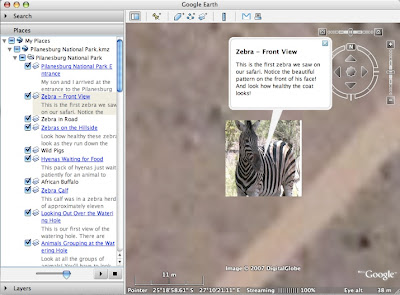
Wouldn’t something like this be a great way to create digital stories of some of the interesting places you've visited and share them with your class? I’ve definitely got to learn how to do this! When I do, I’ll be sure to post directions for you. I’ll also see if I can get permission to post Janet's virtual tour file in a future blog.
*Janet is currently Senior Director of Education and New Media at KOCE-TV (Orange County's PBS Station)
Speaking of Blogs
As long as I’m talking about South Africa, I encourage everyone to check out Janet’s South African World Summit Blog. It contains some great photos, podcasts, and interviews with children from South Africa and around the world. This is a great way to let your students hear voices and thoughts from kids their own age and see how they are alike and different.
For students studying the American Civil Rights movement, this blog also provides some insight into the current struggle for equality in South Africa. Read and listen to what is going on right now and compare it to our own history. Ask your students if they see any similarities or differences. What have we learned from our experience here in the US that might help them deal with their present situation? (What do you think? An interesting class project?)
Planet Earth
Have you been watching Planet Earth on the Discovery Channel? Not only does this amazing program make me want to spend $2000 for a High Definition TV, it's also got some great educational resources as well. Check out the Discovery Channel Planet Earth site for
Sounds Good to Me
I’ve devoted several posts to some great video podcasts for use in the classroom, but let’s not forget that there are some pretty good audio podcasts out there too. Getting kids (and teachers) familiar with downloading and subscribing to audio podcasts helps them get an idea of what a podcast is. It also gets them one step closer to producing their own podcasts. Here are a few “baby steps” to get you started:
Grammar Girl’s Quick and Dirty Tips for Better Writing – a weekly program that focuses on writing and good grammar. These 3 – 6 minute podcasts would be good for grades 5 on up. NOTE: You might have to listen to a little ad from their sponsor before they get to the topic.
Radio WillowWeb – Wow! These kids have really taken student made podcasts to the next level. Great educational content from multiple subject areas, written and presented by elementary students. This would be a great model to follow when introducing your kids to making their own podcasts.
Reading Rockets Presents: Meet the Author – Okay all you librarians, pay attention. This has interviews with various authors including Jack Preletusky, Avi, Marc Brown, Patricia Polacco, Katherine Paterson and many others. A great resource!
Wondering if your kids will be able to listen to these? Try this. Ask how many of your students have iPods. I'm guessing the number will be between 90-100%. Even if they don't have iPods they can still listen to podcasts on their computer. Then imagine giving your kids this assignment, "I want you all to go home and listen to your iPod..." You could be the coolest teacher at your school!
Google Earth Tours
Recently a friend and fellow teacher, Janet English*, had a chance to visit South Africa. One of the many things she did there is visit and take a mini safari in Pilanesburg National Park. What’s cool is she created a virtual tour of the park using Google Earth. The tour lets you follow along on her adventure with written descriptions and pictures. I clicked through this tour with my 5 year old niece over Easter Break and had her try to see how many animals she could name. She got almost all of them.

Wouldn’t something like this be a great way to create digital stories of some of the interesting places you've visited and share them with your class? I’ve definitely got to learn how to do this! When I do, I’ll be sure to post directions for you. I’ll also see if I can get permission to post Janet's virtual tour file in a future blog.
*Janet is currently Senior Director of Education and New Media at KOCE-TV (Orange County's PBS Station)
Speaking of Blogs
As long as I’m talking about South Africa, I encourage everyone to check out Janet’s South African World Summit Blog. It contains some great photos, podcasts, and interviews with children from South Africa and around the world. This is a great way to let your students hear voices and thoughts from kids their own age and see how they are alike and different.
For students studying the American Civil Rights movement, this blog also provides some insight into the current struggle for equality in South Africa. Read and listen to what is going on right now and compare it to our own history. Ask your students if they see any similarities or differences. What have we learned from our experience here in the US that might help them deal with their present situation? (What do you think? An interesting class project?)
Planet Earth
Have you been watching Planet Earth on the Discovery Channel? Not only does this amazing program make me want to spend $2000 for a High Definition TV, it's also got some great educational resources as well. Check out the Discovery Channel Planet Earth site for
- The Planet Earth Animal Guide
- Animal Matching Game
- Planet Earth Game - You're the producer
- Google Earth Tour- Download and open this in Google Earth and see where different segments were filmed and link to streaming video clips.
Friday, March 09, 2007
Kids Become the Teacher with Wikispaces
Several weeks ago, 8th grade started a project using Wikispaces. Every year our 8th graders go to Washington D.C. In the past they have had to write a report about DC that included information about various monuments, the White House, and other places on the tour.
This year our history teacher, Mr. Harrison, decided to try something different. Roles were reversed and the students took on the job of teacher They were divided into groups of four and asked to design a webquest. Together they were to create several worksheets or tests about different places they would visit in DC. Then they worked as a team to design their own page on Mr. Harrison’s Wikispace. Pages would include links to the worksheet document (they were also required to post an answer key), links to web sites that Mr. Harrison would use to answer the questions, and pictures. The groups were evaluated based on how well they completed their task and how well they worked together as a group.
The Setup
To begin this project, we first had to create a space for Mr. Harrison at Wikispaces. Wikispaces offers free public spaces, but charges for private spaces - unless your a teacher. To sign up for a free, private space (only registered space users can see or edit pages) we went to www.wikispaces.com/site/for/teachers100K and registered.
Once we had a space set up, I worked with Mr. Harrison to create his page that included the project guidelines and instructions for his students. Next I created a blank page for each group of students to edit.
The final step was to create user accounts for each student in the class. Normally, a new user needs to register a unique username and password with Wikispaces and supply their own e-mail address. Then they need to be invited to join the Wikispace by creator or owner of that space. This would not work for us because we did not want to students to give out their e-mail address and we wanted control over the usernames assigned to each student. Fortunately, Wikispaces makes this process easier for teachers. All we had to do is follow the procedure they list on their help page for teachers. We sent an e-mail to help@wikispaces.com gave them the usernames and passwords for each student along with the name of the space we wanted them to join. (Our students already have unique user ID’s on our online learning system and I was able to use the same names for Wikispaces.) After a few days, all the students showed up as members in Mr. Harrison’s space.
Student Instruction
Once everything was finally setup, it was time to get the students working. I took one class period and presented a lesson explaining the nuts and bolts of editing a wikispaces page. I also posted screen captures of certain procedures online for students to review later. Here are links to the screen captures:
One of the advantages of using a wiki is that it keeps track of any changes made to a page. At any time, you can click on the history button and see what the page looked like as changes were made. You can also see which user made those changes. In addition to tracking changes, the history button provides students a safety net. If something gets “totally messed up” you can simply revert back to a previous version of the page and begin working from there. This ability to go back in time makes wikis a powerful tool. Checking page history is also a great way for a teacher to see that everyone in the group is participating.
In addition to the page history, each page also has it’s own discussion board. I was surprised to see how many students used it to communicate with their group as they worked on their pages from home. It was fun to read the posts and observe as students helped each other and answered each other’s questions. One or two kids even got reprimanded by by their group for not participating. Mr. Harrison and I were able to monitor all group communication to make sure nothing inappropriate or malicious was being posted. I was even able to answer a few questions myself - from the comfort of my own living room.
Wrapping Up
At the project deadline Mr. Harrison locked all the student’s pages. This prevented them from making any fixes or updates after the the assignment was supposed to be finished. Most student pages met or exceeded our expectations.
As part of the project, each group was required to write an evaluation, explaining what was learned as they worked on their webquests. Here are some of the comments:
All in all, I think our first venture into the use of wikis in the classroom went quite well. We’re already looking at other ways to use this tool. If you’re curious about how you can use wikis with your students, Teachers First has some great ideas.
Curious what some our final projects look like? Since this is a private space I can’t include a link, but here is a brief video tour.
Mr. Harrison’s Wikispace Tour (Windows Media Player Required)
This year our history teacher, Mr. Harrison, decided to try something different. Roles were reversed and the students took on the job of teacher They were divided into groups of four and asked to design a webquest. Together they were to create several worksheets or tests about different places they would visit in DC. Then they worked as a team to design their own page on Mr. Harrison’s Wikispace. Pages would include links to the worksheet document (they were also required to post an answer key), links to web sites that Mr. Harrison would use to answer the questions, and pictures. The groups were evaluated based on how well they completed their task and how well they worked together as a group.
The Setup
To begin this project, we first had to create a space for Mr. Harrison at Wikispaces. Wikispaces offers free public spaces, but charges for private spaces - unless your a teacher. To sign up for a free, private space (only registered space users can see or edit pages) we went to www.wikispaces.com/site/for/teachers100K and registered.
Once we had a space set up, I worked with Mr. Harrison to create his page that included the project guidelines and instructions for his students. Next I created a blank page for each group of students to edit.
The final step was to create user accounts for each student in the class. Normally, a new user needs to register a unique username and password with Wikispaces and supply their own e-mail address. Then they need to be invited to join the Wikispace by creator or owner of that space. This would not work for us because we did not want to students to give out their e-mail address and we wanted control over the usernames assigned to each student. Fortunately, Wikispaces makes this process easier for teachers. All we had to do is follow the procedure they list on their help page for teachers. We sent an e-mail to help@wikispaces.com gave them the usernames and passwords for each student along with the name of the space we wanted them to join. (Our students already have unique user ID’s on our online learning system and I was able to use the same names for Wikispaces.) After a few days, all the students showed up as members in Mr. Harrison’s space.
Student Instruction
Once everything was finally setup, it was time to get the students working. I took one class period and presented a lesson explaining the nuts and bolts of editing a wikispaces page. I also posted screen captures of certain procedures online for students to review later. Here are links to the screen captures:
- Add an image - Part 1 (Windows Media Player Required)
- Add an image - Part 2 (Windows Media Player Required)
- Make a link (Windows Media Player Required)
One of the advantages of using a wiki is that it keeps track of any changes made to a page. At any time, you can click on the history button and see what the page looked like as changes were made. You can also see which user made those changes. In addition to tracking changes, the history button provides students a safety net. If something gets “totally messed up” you can simply revert back to a previous version of the page and begin working from there. This ability to go back in time makes wikis a powerful tool. Checking page history is also a great way for a teacher to see that everyone in the group is participating.
In addition to the page history, each page also has it’s own discussion board. I was surprised to see how many students used it to communicate with their group as they worked on their pages from home. It was fun to read the posts and observe as students helped each other and answered each other’s questions. One or two kids even got reprimanded by by their group for not participating. Mr. Harrison and I were able to monitor all group communication to make sure nothing inappropriate or malicious was being posted. I was even able to answer a few questions myself - from the comfort of my own living room.
Wrapping Up
At the project deadline Mr. Harrison locked all the student’s pages. This prevented them from making any fixes or updates after the the assignment was supposed to be finished. Most student pages met or exceeded our expectations.
As part of the project, each group was required to write an evaluation, explaining what was learned as they worked on their webquests. Here are some of the comments:
“I thought that this process was very new and different, and at times, very frustrating. But we were able to either leave comments for each other or call each other.” ... “I really liked the idea of the team responsibilities, because that way no one person gets all the load dumped on them.”
“We had to work together to finish this project and it was a little hectic. The hardest part was having to split up the duties evenly so that we all got a grade on it.”
“In the end this was a very good project. It was way better than doing a report. One problem was it was difficult when you could not edit at them same time. This caused some problems but in the end we fixed them. Also at some points it would get very annoying with the page. You would do something and save but it would not keep it. But it was fixed and we finished our project. This was a very good project and we would much rather do this than a whole report by ourselves.”
“This project was very fun for all of us and was a wonderful learning experience, but somewhat difficult. We like the format of the website, but the toolbar was a bit hard. If we could change something about this site it would have to be the pictures, because they were somewhat hard to download. We definitely thought this was 100 times better than a 20 page report!”Many groups experienced frustration with the Wikispaces page editor as things that looked great in the editor did not always look the same once they were saved. We let students know up front that the editor could be a little quirky at times, and that they would need to work together to solve problems. For the most part, members of the group stepped up and were able to solve their own technical problems.
All in all, I think our first venture into the use of wikis in the classroom went quite well. We’re already looking at other ways to use this tool. If you’re curious about how you can use wikis with your students, Teachers First has some great ideas.
Curious what some our final projects look like? Since this is a private space I can’t include a link, but here is a brief video tour.
Mr. Harrison’s Wikispace Tour (Windows Media Player Required)
Monday, December 11, 2006
Brochure Maker
I like things that are easy to use. It's even better when those things are also FREE. Our 8th grade teacher shared this site with me this morning (www.mybrochuremaker.com). Her students are using it for their writing class. They are designing brochures for the upcoming trip to Washington DC (May 2007).
To create a brochure using this online tool, you start by selecting a type and style from one of their templates. You can select pictures in their template and upload your own pictures to replace them. Then you just click in the text frames and type your own text. For our writing class, students first wrote and proofread their text using a word processor. Getting the text into the brochure was just a matter of copying and pasting.
 Pictures upload quite easily and I was even able drag and center my pictures within their frames, similar to the way you can using Apple's Pages or iPhoto . When you finish, you just print it out or you can save it for later retrieval by giving them your e-mail address.
Quick, easy, and FREE. What could be better?
To create a brochure using this online tool, you start by selecting a type and style from one of their templates. You can select pictures in their template and upload your own pictures to replace them. Then you just click in the text frames and type your own text. For our writing class, students first wrote and proofread their text using a word processor. Getting the text into the brochure was just a matter of copying and pasting.
 Pictures upload quite easily and I was even able drag and center my pictures within their frames, similar to the way you can using Apple's Pages or iPhoto . When you finish, you just print it out or you can save it for later retrieval by giving them your e-mail address.
Quick, easy, and FREE. What could be better?
Subscribe to:
Posts (Atom)


