Back in November 2007 I posted a "Not So Simple Solution" demonstrating a fairly complicated way to take projects created in Microsoft PhotoStory3 and make them viewable on Macs.
While brainstorming a way to share our 3rd grade Animal Riddles online (thanks Jennifer Gingerich for the project idea) I tried uploading the wmv files created by PhotoStory directly into Voicethread - AND IT WORKED!
Now we can not only share our students' PhotoStory projects, but putting them on Voicethread allows us the option to let others comment back. Nice!
Below is an example. (Until I get an OK from the teacher I've turned off commenting.)
Showing posts with label voicethread. Show all posts
Showing posts with label voicethread. Show all posts
Thursday, June 04, 2009


Saturday, October 13, 2007
VoiceThread Update
Okay, I'm really becoming a fan of VoiceThread. In fact I'll even be including it in a Digital Storytelling workshop I'm presenting later this month. Last week VoiceThread updated it's site and added a few new features. One big difference is that there are now two versions of VoiceThread - the free version and the Pro version. Those of us who signed up for the free version are now limited to creating only 3 voicethreads with a maximum of 50 slides each. The pro version, which costs $29.95/year, gives you unlimited VoiceThreads and storage and also give you the ability to upload mp3 files for your comments. So pro users can, for example, record, mix, and edit their audio comments using something like Audacity to create more professional sounding presentations.
Here's the good news. K-12 educators can sign up for a special pro account for free. First you need to register for a free account and login. Next you find and click where it says "Go Pro". At the bottom of the page will be a link that says "K-12 Educators Click Here". That will take you to the educator application form.
How is the new VoiceThread site different from the old one? Here's a look at some of the changes.
When you view a VoiceThread the screen looks a little different.

If you have trouble reading my comments, click the image to make it larger.
When uploading and rearranging pictures they've made things a little easier and given you a few more options.

Click image to make it larger.
When you click SHARE to add friends to your VoiceThread account or invite friends to view or edit your presentations, you can now see each friend and their edit rights all on one screen. Note: The button to add new friends is now located at the very bottom of your friends list. It took me a little while to find this.

Click the image to make it larger.
When setting my sharing options, I like to set my VoiceThreads to "Public, no comments". This allows anyone to see my presentations, but only those people I invite can comment or edit it. Since I generally trust those who I invite, I turn comment moderation off so when my friends comment, their comment is posted immediately. If you are working with students and concerned about privacy issues, you may want to keep your VoiceThread private and turn the moderation on so you can check what your students say before the rest of the class can hear it.
Want to participate in a VoiceThread. I've created one for an elementary project called Seasons. I'm looking for students or teachers to post pictures and share what the seasons are like where they live. Please comment or e-mail me if you would like to participate. Click on my profile for my e-mail link. Here is how the project looks so far:
If you can't view the embedded presentation, here is a link to it at the VoiceThread site: http://voicethread.com/#b10538
Happy storytelling.
Here's the good news. K-12 educators can sign up for a special pro account for free. First you need to register for a free account and login. Next you find and click where it says "Go Pro". At the bottom of the page will be a link that says "K-12 Educators Click Here". That will take you to the educator application form.
How is the new VoiceThread site different from the old one? Here's a look at some of the changes.
When you view a VoiceThread the screen looks a little different.

If you have trouble reading my comments, click the image to make it larger.
When uploading and rearranging pictures they've made things a little easier and given you a few more options.

Click image to make it larger.
When you click SHARE to add friends to your VoiceThread account or invite friends to view or edit your presentations, you can now see each friend and their edit rights all on one screen. Note: The button to add new friends is now located at the very bottom of your friends list. It took me a little while to find this.

Click the image to make it larger.
When setting my sharing options, I like to set my VoiceThreads to "Public, no comments". This allows anyone to see my presentations, but only those people I invite can comment or edit it. Since I generally trust those who I invite, I turn comment moderation off so when my friends comment, their comment is posted immediately. If you are working with students and concerned about privacy issues, you may want to keep your VoiceThread private and turn the moderation on so you can check what your students say before the rest of the class can hear it.
Want to participate in a VoiceThread. I've created one for an elementary project called Seasons. I'm looking for students or teachers to post pictures and share what the seasons are like where they live. Please comment or e-mail me if you would like to participate. Click on my profile for my e-mail link. Here is how the project looks so far:
If you can't view the embedded presentation, here is a link to it at the VoiceThread site: http://voicethread.com/#b10538
Happy storytelling.
Sunday, September 30, 2007
Your Pictures Tell A Story
It's Sunday night and I'm sitting at home watching the new Ken Burns series "The War" on my local PBS station. If you've seen Ken Burns work before- like the Civil War series - you know that he is a master of telling a story using still pictures. His combination of pictures and voices, often from the very people in the pictures themselves, not only tell a compelling story but they often reach down and grab you emotionally as well. There's something about adding a human voice that brings the photos to life.
One great tool for doing this yourself is Microsoft's Photo Story3, but you're limited to working on your own project and your own computer. One person, one idea. If you really want your stories to take on a life of their own look at VoiceThread. It adds a unique collaborative element to photos and voices by allowing others to add their own voice comments to your photos or upload their own photos and comments. Imagine the collaborative possibilities!
Here's how it works. First you go to VoiceThread and register. Your ID is your e-mail address. Next you create a new VoiceThread, give it a title and a description, and even add some tags for searching.
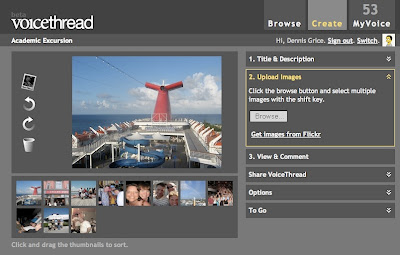
Now you're ready to start uploading pictures. Pictures can be from your computer or brought in from your Flickr account.
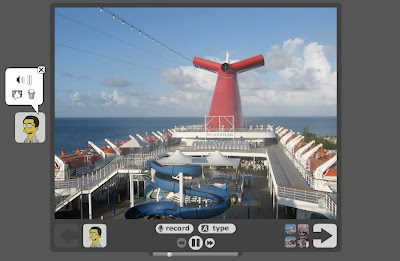
Then it's time to start adding your voice comments to your pictures. All you need to do is go to "View and Comment" and click the record button to start adding your voice.
Now that you've got your thread started, it's time to share it with others. Click on Share VoiceThread and you can invite others to view and comment on your pictures. Once you invite someone you can grant them edit rights, giving them the ability to upload their own pictures. By default, your VoiceThread is private - only those you invite can see it or comment. You can make it public two different ways. 1) Allowing anyone to view and comment. 2) Anyone can view but only those you invite can comment.
NOTE: If you want to be able to embed your VoiceThread on a blog or web page, it needs to be public.
To try out some of the collaborative capabilities of VoiceThread, I created a test project about the Discovery National Institute I attended this summer. I invited several of my fellow shipmates to participate, asking them to add a picture and share a story from our "Academic Excursion". Here's a what the project looks like so far... (If you click on the photo you can zoom in and out.)
If you can't see the embedded VoiceThread, follow this link:
http://fresh.voicethread.com/#b7495
After some experimenting we discovered that pictures brought in from Flickr seem to work more reliably than those that were uploaded directly. I also noticed that the audio quality varied depending on the microphone and audio settings on different machines, but overall I was quite pleased with how easy it was to create a collaborative project.
If you want to use VoiceThread with your students and don't want them to have to register with an e-mail address, you can go to Yahoo or HotMail and create a generic class e-mail address that you can use as your VoiceThread ID. Then you can add additional identities for your students to use when commenting on photos. Since VoiceThreads can be private, only those who know the e-mail address and the password will be able to see the students pictures or hear their voices. VoiceThread has posted directions for teachers that explain how to do this.
Would you like to participate in a VoiceThread project? Amy Lundstrom has started one called Landforms Where We Live. Take a look at it and if you'd like to participate, leave me a comment.
Or go ahead a start your own VoiceThread. Here are just a few ideas to get you started:
One great tool for doing this yourself is Microsoft's Photo Story3, but you're limited to working on your own project and your own computer. One person, one idea. If you really want your stories to take on a life of their own look at VoiceThread. It adds a unique collaborative element to photos and voices by allowing others to add their own voice comments to your photos or upload their own photos and comments. Imagine the collaborative possibilities!
Here's how it works. First you go to VoiceThread and register. Your ID is your e-mail address. Next you create a new VoiceThread, give it a title and a description, and even add some tags for searching.

Now you're ready to start uploading pictures. Pictures can be from your computer or brought in from your Flickr account.

Then it's time to start adding your voice comments to your pictures. All you need to do is go to "View and Comment" and click the record button to start adding your voice.
Now that you've got your thread started, it's time to share it with others. Click on Share VoiceThread and you can invite others to view and comment on your pictures. Once you invite someone you can grant them edit rights, giving them the ability to upload their own pictures. By default, your VoiceThread is private - only those you invite can see it or comment. You can make it public two different ways. 1) Allowing anyone to view and comment. 2) Anyone can view but only those you invite can comment.
NOTE: If you want to be able to embed your VoiceThread on a blog or web page, it needs to be public.
To try out some of the collaborative capabilities of VoiceThread, I created a test project about the Discovery National Institute I attended this summer. I invited several of my fellow shipmates to participate, asking them to add a picture and share a story from our "Academic Excursion". Here's a what the project looks like so far... (If you click on the photo you can zoom in and out.)
If you can't see the embedded VoiceThread, follow this link:
http://fresh.voicethread.com/#b7495
After some experimenting we discovered that pictures brought in from Flickr seem to work more reliably than those that were uploaded directly. I also noticed that the audio quality varied depending on the microphone and audio settings on different machines, but overall I was quite pleased with how easy it was to create a collaborative project.
If you want to use VoiceThread with your students and don't want them to have to register with an e-mail address, you can go to Yahoo or HotMail and create a generic class e-mail address that you can use as your VoiceThread ID. Then you can add additional identities for your students to use when commenting on photos. Since VoiceThreads can be private, only those who know the e-mail address and the password will be able to see the students pictures or hear their voices. VoiceThread has posted directions for teachers that explain how to do this.
Would you like to participate in a VoiceThread project? Amy Lundstrom has started one called Landforms Where We Live. Take a look at it and if you'd like to participate, leave me a comment.
Or go ahead a start your own VoiceThread. Here are just a few ideas to get you started:
- If you teach 5th Grade, perhaps you could try to get students from different states to post a picture and information about their state.
- Have students scan an old picture of their grandparents and asj them share what happened in that picture - a living history.
- Younger children may be interested to see what the seasons look like in different parts of the country. Have students upload a picture of what Fall is like in their area and describe the scenery and the weather.
Subscribe to:
Posts (Atom)


